How to Find the Recurring Charges You Stopped Noticing
A forgotten charge hides behind repetition, not a brand name. Learn how to sort one bank statement by amount and cadence to find it in minutes.
Ever feel like your money disappears between paydays, but you can't point to a single splurge? The culprit is often a budget leak: a charge that started as a decision, then became a default. Instead of hunting through every app, you can read your bank or credit card statement for a simpler signal. Look for fixed-cadence, near-identical amounts. Repetition is the giveaway, not the merchant name.
In this post, you'll learn what counts as a recurring charge on a statement, why repetition beats the merchant name, and what to have ready before you start. Then we'll walk through Step 1: sort by amount, not date. Step 2: flag near-identical amounts that repeat. Step 3: check cadence, then confirm the charge. Step 4: match each charge to a decision you remember making. We'll also cover tips for reading faster, what to do when you find a charge you cannot stop, and how to do this without building a spreadsheet. By the end, you'll turn that list into fewer charges and a clearer budget.
What Counts as a Recurring Charge on a Statement
A standing order is a fixed amount your bank sends on a set date. A direct debit is permission you give a company to collect from your account, often for a varying amount. The same pattern can appear under different labels depending on your bank and country. The detection method is identical either way.
These lines survive unnoticed because nothing new happens. No notification, no app prompt, no fresh purchase, so no new memory competes with the original decision.
A budget leak is money leaving on a schedule you no longer consciously agreed to, which is why a review built on categories rarely surfaces it.
Cancelling differs by type. You can stop a standing order yourself at your bank. A Direct Debit mandate can also be cancelled at any time under the Direct Debit Guarantee, though ending the underlying contract usually means contacting the company. Card mandates go through the company.
Before sorting anything, identify which columns hold the amount, the date and the description. Different export formats arrange them differently, so that check always comes first. For a UK-specific starting structure, see your first budget template.
Why Repetition Beats the Merchant Name
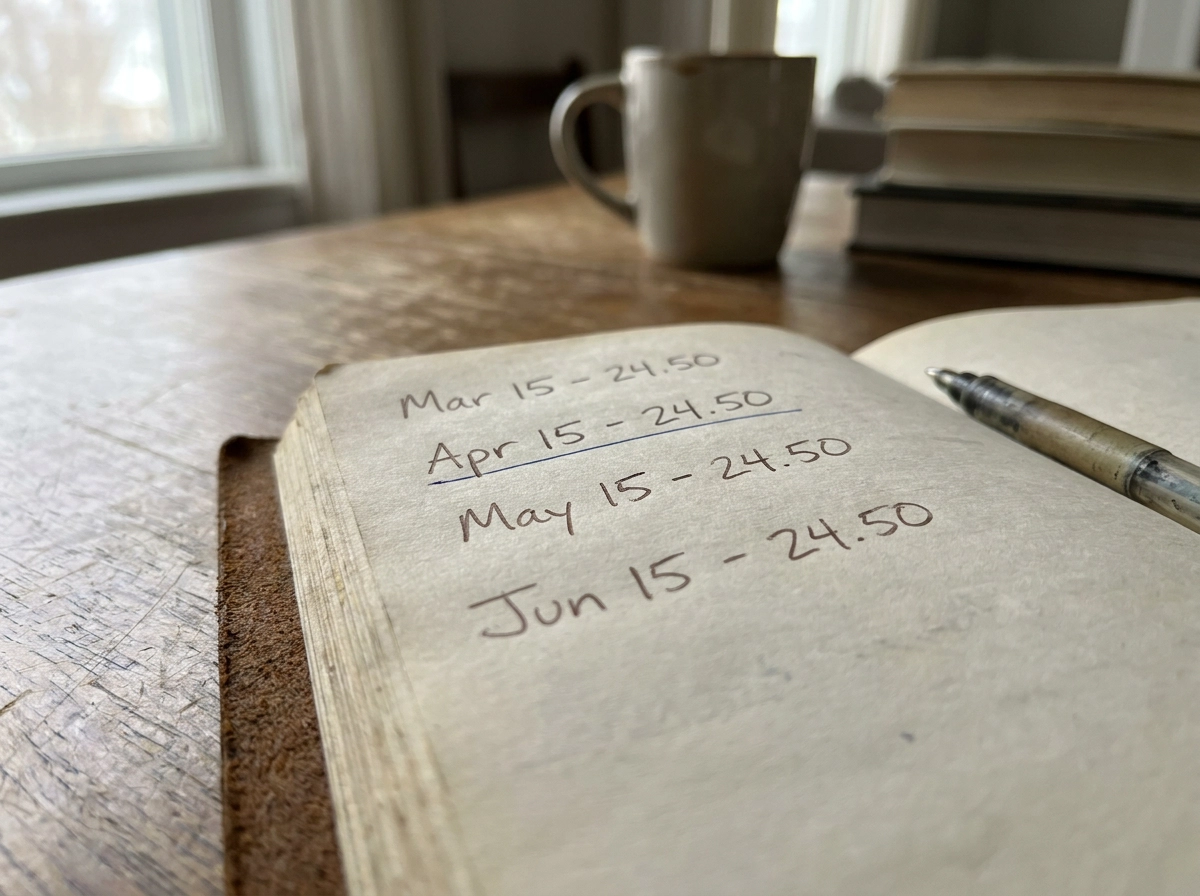
You are hunting structure, not brands. A descriptor you would never recognise can still stand out, because the same figure lands at the same interval, month after month.
Recall fails honestly: once you approve a charge it becomes a default, and you remember the decision, not the amount or the frequency. Memory drops the details; the statement keeps them, which is why how to read a bank statement for budget insights beats a glance at the closing balance.
Date order hides this. A date-sorted statement interleaves groceries, fuel and renewals, so no pattern shows. Sort by amount and identical figures sit side by side, impossible to miss.
The problem is live. The FTC has alleged, in a pending action, that Genesis Tech and its subsidiaries advertised products as free or low one-time cost, then obscured auto-renewing charges and set cancellation barriers. The same complaint alleges unauthorised double-charging and products added without consent, both of which appear as repeated or unexpected line items when you sort by amount. These are allegations, not findings.
One caveat: this is the method taught here, not a benchmarked finding.
What to Have Ready Before You Start
Before you sort anything, gather your statements. Download at least two consecutive statements, three if your bank allows it. Two reveal a monthly cadence; the third confirms it and catches quarterly charges one month hides.
Choose the most sortable export. CSV, XLS and OFX open straight in a spreadsheet. A PDF needs real text, not a scanned image; if it is image-only, use OCR to extract the transactions.
Set up four columns and nothing more: description, amount, date, interval. This keeps the list to a page and stops you categorising before you have found anything.
Treat this as per-account work. If you pay subscriptions from a credit card and a current account, scan twice and merge the lists. A charge visible on one statement only is easy to miss.
The first account takes the longest; later scans are quicker once you have a standing list to compare against. For the wider picture, this guide to building a personal budget from scratch shows how to use real statement numbers.
Step 1: Sort the Statement by Amount, Not by Date
With your four columns ready, sort the amount column ascending. Identical and near-identical figures land beside each other, and that adjacency is the whole point: pattern you would never spot in a date-ordered list becomes obvious in a cluster.
Sort for tolerance, not exact matches. A price rise, a tax element or a usage component can shift a recurring charge by a few percent, so as a working rule of thumb group figures within roughly five percent of each other and verify before logging them.
Watch for same-day authorisation and settlement pairs, which mimic a duplicate. Only log them separately if the descriptor and amount genuinely repeat across periods.
Flag variable-amount charges separately. Utilities, telecoms and usage-based services vary by definition, so amount-sorting will not group them; the cadence check catches those next.
As a working rule of thumb, circle every cluster appearing three or more times. That shortlist is your candidate list, and it is usually shorter than people expect; many of these clusters are the same hidden cost categories your bank statement reveals after you upload it.
Keep the original statement alongside your working file so you can verify a descriptor later without re-downloading.
Step 2: Flag Near-Identical Amounts That Repeat
Now scan those clusters for charges that repeat at the same amount. Streaming tiers, software licences, gym memberships, insurance premiums, cloud storage, hosting and domain renewals all bill the same figure on the same cadence.
Watch for free-trial-to-paid patterns. The FTC's action against Genesis Tech alleges that products were advertised as free or low one-time cost while recurring charges were obscured, an allegation, not a finding.
Copy descriptors exactly. Billing names are often unfamiliar entities, processors or product names, so searching for the brand you remember can return nothing.
Don't skip small amounts. A handful of charges under £10 a month compounds quietly over a year.
Treat duplicates on the same or adjacent day as an immediate flag; a duplicate is worth a call to your bank the same day.
New to statement columns? Our guide to using a bank statement to budget walks through the basics.
Step 3: Check the Cadence, Then Confirm the Charge
Now check the interval, not just the repetition. Monthly is not the only rhythm: in practice you will commonly encounter 7, 14, 30, 31, 90 and 365 day cycles on ordinary statements. Compare dates rather than counting days, because in practice a charge set for the 31st skips short months and will look irregular.
Hunt annual renewals hardest. A line item from twelve months back looks exactly like a one-off purchase, so sort across a full year before deciding a charge is not recurring. These blind spots sit behind the 7 spending categories your bank statement reveals that never make it into a budget.
Confirm each candidate against a second source: your banking app, the merchant account page, or a receipt email. Searching your inbox for the descriptor or the amount is usually faster than logging into another account.
With cadence confirmed, you are ready to ask whether each charge still reflects a deliberate choice.
Finally, note creeping amounts separately. Slow price rises on a kept charge differ from a forgotten one, but both are budget leaks.
Step 4: Match Each Charge to a Decision You Remember Making
Now the question flips from "is this recurring?" to "do I still want it?" Apply one blunt test to every line: can you name the day you last decided to keep paying this? If not, it is a default, not a choice, so it goes in the cancel column.
Separate the two failure modes, because they need different fixes. "I forgot this exists" is a detection problem this scan has solved. "I keep meaning to cancel" is a follow-through problem; that one needs a deadline and a reminder.
Check for bundles riding along: added features inside a subscription, insurance add-ons, warranty renewals, premium support tiers that came with a purchase. Question shared access too. A family plan you no longer split, an app bought for one project, a second seat for someone who stopped using it.
For each charge you keep, record what you actually get, so the next scan takes seconds. Budgeting tips that only work once you can see your real spending build on that habit.
Tips for Reading a Statement Faster
Once you have labelled each charge, the next win is making the scan itself faster. Do it in a fresh sitting, not at the end of a budgeting session. You are matching patterns, not judging spending, and those are different mental tasks.
Ignore categories until after you have sorted by amount. Categorising first splits your attention and dilutes the repetition signal you came for.
Run a keyword search across the description column for renewal, subscription, auto, recurring or annual as a secondary check. Never rely on it alone: descriptors are often internal codes.
Keep a standing list split by cadence, monthly, quarterly and annual, so each scan compares against a known list instead of starting from scratch. A monthly review habit built on your statement makes this automatic rather than heroic.
Repeat in a fixed monthly slot. The first pass is longest, and the value is spotting a new fixed-cadence amount the month it appears, not a year later.
When You Find a Charge You Cannot Stop
Sometimes a charge you already cancelled keeps landing. Barriers are worth knowing upfront: the FTC's complaint against Genesis Tech alleges cancellation options were omitted or hidden, and that customers were required to explain why they were cancelling. These are allegations in a pending action, not findings.
Keep evidence as you go: screenshots, dates and times of attempts, chat transcripts, and any confirmation email or reference number.
Cancel in writing where you can and keep the confirmation. A written confirmation from the company matters, because stopping a mandate or card payment at your bank can halt future collections without ending the underlying contract.
Ask for a refund on any charges taken after you cancelled. Keep the request factual and short, with the charge dates attached, and escalate if the first response is a refusal.
Check current consumer guidance for your country before relying on a specific right. The FTC and CFPB publish guidance on free trials, auto-renewals and negative option subscriptions, and the pathway differs between jurisdictions.
Doing This Without Building a Spreadsheet
Once you know how to act on a charge, the remaining friction is admin. Sorting months of figures by hand wears thin quickly, and some statements only export as scanned images.
That is where StatementToBudget.com comes in. It is a free tool: upload bank statements in PDF, CSV, XLS or OFX and it turns them into categorised budget insights, using AI-driven spending analysis, transaction extraction and bank statement OCR. It suits the two spots where this method gets awkward: an image-only PDF you cannot sort, and a multi-month scan where manual sorting drags.
The rule does not change. You are still hunting fixed-cadence, near-identical amounts, and sorting by amount is still what makes the repetition visible.
Start with the account where your recurring charges cluster, then repeat the upload for any other account you pay from. Upload only statements you are comfortable processing, and check what your export actually contains first, so nothing relevant is missing.
Takeaways: Turn the List Into Fewer Charges
Whether you sorted by hand or let a tool do it, the closing move is the same.
Sort the amount column ascending and, as a working rule of thumb, circle every cluster appearing three or more times, then label each one keep, cancel or investigate.
Put a date next to every cancel. A decision without a deadline stays a default, which is how it became a budget leak in the first place.
Cancel one charge this week and keep the confirmation. If charges continued after a cancellation you had already requested, ask for a refund quoting the dates and any reference number.
Then repeat on the same day each month. The list gets shorter, the scan gets faster, and the next forgotten charge shows up in its first month rather than its twelfth.
Conclusion
Finding recurring charges is not about remembering every merchant. It is about spotting patterns: fixed cadence, near-identical amounts, and repetition that survives a change in merchant name. Sort by amount, not date, flag repeats, check the cadence, then match each charge to a real decision. Give every cancel a deadline, and keep the confirmation so follow-up is simple.
If an image-only PDF or multi-month scan slows you down, StatementToBudget.com handles the extraction and sorting so you can focus on the decisions. Cancel one charge this week. Repeat monthly. The list gets shorter, your budget gets clearer, and forgotten charges lose their hiding place.