Why UK Bank Statements Break in Tools Built for US Formats
Day/month dates, sign conventions and split columns get silently misread by US-built converters. Check five fields before you trust the budget.
Your UK bank statement can look perfectly ordinary and still produce a budget that is wrong from the first row. The balance may not reconcile, categories may drift, and the error often has nothing to do with the file itself. It comes from how a tool built around US date, sign, and column conventions reads UK data. Day/month order, negative amounts, separate paid-in and paid-out columns, decimal and thousands separators, and the difference between the transaction amount and the running balance can all be silently reinterpreted. Conversion quality is therefore a field-mapping problem, not merely a file-format problem.
This tutorial explains how that misreading happens and how to catch it before you rely on the result. You will work through why US-default parsers struggle with UK statements, then examine five specific fields to check before trusting any conversion. You will also see why PDF and OCR failures differ from CSV and XLS failures, follow a five-minute verification routine, and finish with practical steps for your next upload. The aim is not to blame the file; it is to make the field mapping visible, testable, and correct.
The Budget That Adds Up and Is Still Wrong
No error message appears. The import finishes, the rows populate, categories look sensible, and the spreadsheet opens without complaint. That is exactly what makes it dangerous.
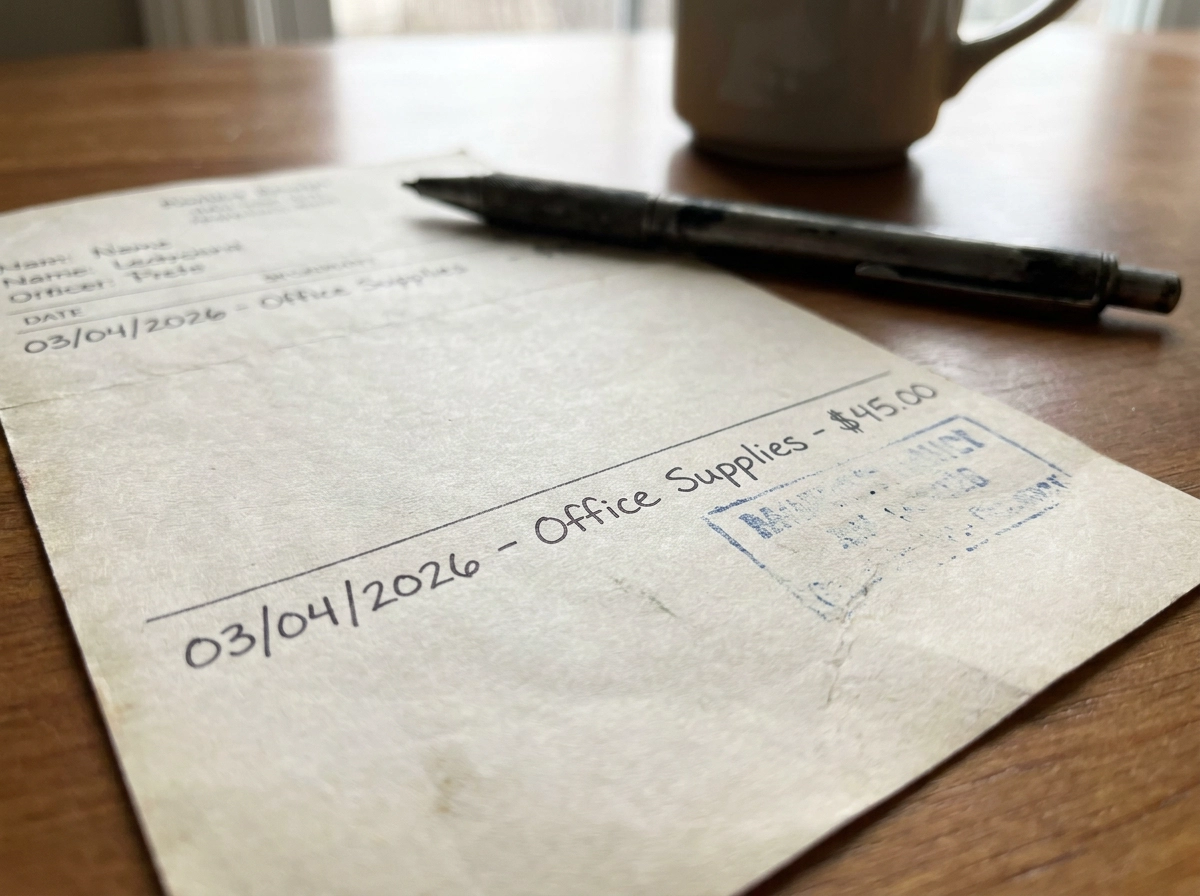
Take a hypothetical line printed 03/04/2026. Read day first, it is 3 April. Read month first, it becomes 4 March. The row moves to a different calendar month and a different budget period, and nothing in the file signals the switch.
The damage compounds. A payday or direct debit that crosses a month boundary rewrites the period total, tilts the category trend, and reshapes next month before you have spent anything.
A parser that misreads a field does not know it misread a field. No flag appears, only a wrong figure that looks credible, which is why how bank statement OCR works and why accuracy matters before you budget deserves attention.
The framing matters: this is a field-mapping problem, not a file-format problem. The upload worked. The fields simply landed in the wrong places.
Why Tools Built for US Formats Read UK Statements Differently
Parsers ship with defaults, and those defaults are usually US ones: month-first dates, a dot for decimals, a comma for thousands, and a negative sign for money out. On a UK statement, each assumption meets the opposite convention.
The parse still succeeds. 03/04/2026 is a valid date either way, so nothing warns you and nothing asks which convention your bank uses. A free bank statement converter built on US defaults returns output that is internally consistent and externally wrong; the five-field check catches that before a budget rests on it.
Two pipelines are often confused. UK open banking delivers account data through regulated APIs, as set out in the Open Banking Standards. A downloaded PDF, CSV, XLS or OFX file is a separate path, so file-level mapping errors are not API data issues. For why layouts vary, see why your statement format matters.
These five fields are a verification framework for your own statement, not a published standard for UK layouts, which vary between banks and even between accounts at the same bank. Test it against your last statement rather than assuming any tool, free or paid, has handled your bank.
The Five Fields to Check Before You Trust Any Conversion
The US-default parser behaviour described above is what each of these fields tests. Check these five fields, in order.
Field 1: the date. Day first or month first? Confirm with a day above 12, such as 13/04.
Field 2: money out. A leading minus, brackets, a trailing minus or a debit column all mean the same thing. A parser that assumes positives adds outgoings to income.
Field 3: split columns. Paid-in and paid-out in two columns must merge into one signed amount. Count rows: one per statement line.
Field 4: separators and symbols. Decimal and thousands markers can each be read two ways, and a currency symbol left inside a numeric field forces the column to text. StatementToBudget.com explains where extraction errors end and mapping errors begin.
Field 5: amount versus balance. Both are plausible money values. Shift a header by one column and the running balance becomes the transaction amount.
Order matters. A shifted date makes a shifted sign much harder to spot, because both produce a wrong total that looks justified.
Field 1: The Transaction Date and Its Order
Dates come first in that order for a reason. Read the printed dates: is the order day first, month first, or year first, and is it consistent on every row? Some statements also print a value date beside the transaction date, and a tool can pick the wrong one.
A tool with US-default month-first parsing would read 03/04/2026 as 4 March rather than 3 April, and nothing in the file signals the difference.
Test with a date past the 12th, because a day value above 12 cannot be misread as a month, so it reveals the field order. If 13/04/2026 exports as 13 April, day-first reading works. If the output shows a blank, an impossible date, or 1 April, that is a strong indicator the field order was misread. Fix dates before anything else: they drive period totals, monthly category splits and budget cycles that start or end mid-month.
Watch weekend and holiday rows. A Saturday transaction appearing on a Monday in the export suggests a value date was used as the transaction date. (This is a practical diagnostic, not a documented rule.) Validating output this way is covered at StatementToBudget.com.
Field 2: How Money Out Is Written
With dates fixed, the next silent failure is direction. As noted in the field checklist, money out may appear as a leading minus, brackets, a trailing minus, or a debit column, here is how to confirm the conversion handled it correctly. A tool that treats every number as positive will add outgoing payments to income instead of subtracting them, inflating both sides by the same amount, though some tools handle this correctly; the check confirms which yours does. The totals look plausible, not obviously broken.
Confirm with a payment you recognise: a direct debit or card payment should appear negative, or in the correct direction, in the converted file. Then check balances. If the statement shows an overdrawn period, the converted opening and closing balances must also be negative. If that applies to you, what a negative bank account balance means is worth checking.
Direction must hold row by row. One flipped sign breaks reconciliation and stays hidden inside a near-correct total. Next comes the split-column problem.
Field 3: Separate Paid-In and Paid-Out Columns
Signs are not the only way a statement shows direction. Many print money in two columns instead of one signed amount: paid in and paid out. The converter must merge those into a single amount per transaction while preserving each row's direction.
The three failure modes (single column read, both columns summed, empty cells as zeroes) all produce a wrong row count.
Confirm it by counting rows: the export should hold one transaction per statement line, not two per line and not half as many. Then reconcile against the statement's own summary. As a basic accounting check, total paid in minus total paid out should equal the change between the opening and closing balances.
Two-column statements usually carry a running balance in a third money column, which is Field 5. Treat the split columns and the balance column as separate mapping decisions, because they fail independently.
Once rows reconcile, free budget planner templates that accept statement data suit the corrected export.
Field 4: Decimal and Thousands Separators
After merging paid-in and paid-out into one amount column, punctuation becomes the next mapping decision.
Amounts carry two characters that can be read two ways: the decimal marker and the thousands marker. The same figure parses differently depending on the convention assumed. US defaults expect a dot for decimals and a comma for thousands, while a UK statement may print the reverse.
Rows that may carry three decimal places, such as fuel, interest or foreign currency transactions, are worth checking. Check whether these appear rounded, truncated, or split into a value never printed.
In many spreadsheet applications, a pound sign or code in a numeric field forces the column to read as text, and those values drop out of totals and charts.
To confirm, total one page by hand and compare with the export. Separator errors produce absurd magnitudes; scan for outliers: a coffee costing more than your rent is a mapping error, not a habit.
StatementToBudget.com covers which formats preserve numeric fields most reliably.
Field 5: The Amount Column vs the Running Balance
With separators settled, the final mapping question is which money column is which. A statement carries an amount and a running balance, both plausible money values. If a header shifts by one column, the balance can be mapped as the amount, leaving every row consistently, believably wrong, as a common mapping error. Detect it by magnitude: rows close to the balance line rather than the individual payment mean the balance column is being read as the amount.
Check the final row. As a verification rule of thumb, the converted closing balance must match the last printed balance to the penny, not approximately. Confirm the statement's own period: opening balance, period start and period end, because a conversion can be internally correct yet cover the wrong window if it uses the upload date instead. This is also where off-by-one dates appear: a payday shifting across a month boundary shows up as a balance movement in the wrong period, so run the balance and date checks together. StatementToBudget.com sets out why that balance line carries budget signal.
Two Different Failures: PDF and OCR vs CSV and XLS
Different formats fail in different places. A PDF statement must be read as text or as an image, so common OCR character confusions include pairs such as 0 and O, 1 and l, or 8 and B, leaving garbled, merged or missing rows.
CSV or XLS already holds structure, so OCR is not involved. Failures sit in header mapping, delimiter choice, date parsing and sign handling, producing clean-looking wrong numbers with no obvious clue on the surface.
Diagnosing the wrong layer wastes time. A useful rule of thumb: OCR errors shift entire rows and vary between pages; mapping errors shift the same field identically on every row.
A practical test: convert the same statement twice, once as PDF and once as CSV or XLS, then compare row counts and totals. Differences point at extraction; identical wrong totals point at mapping.
Because OFX is a structured, tagged standard, OFX files tend to convert with fewer mapping questions. If your OFX reconciles and your PDF does not, start with extraction.
Keep this distinction when asking a tool what went wrong. A vendor that treats both as one problem cannot tell you which layer is failing.
The Five-Minute Check Before You Trust the Result
Whichever pipeline you used, verification is identical. Lay the last page of the statement beside the last page of the export; mapping errors surface in the closing balance before anywhere else.
As a straightforward accounting identity, reconcile once: opening balance plus paid in, minus paid out, should equal the closing balance. If it does not tie, stop and work through the five fields in order before opening any category chart.
Spot check five dates across the period, one after the 12th (because a day value above 12 cannot be misread as a month, so it reveals the field order), and five amounts, including an outgoing payment and a thousands separator.
Run the same statement through a second format and compare. StatementToBudget.com accepts PDF, CSV, XLS and OFX, applies bank statement OCR and AI categorisation, and is free, so a second pass costs nothing.
Repeat for every account you convert; conventions can differ between accounts at the same bank, so a pass on one statement does not transfer automatically.
If a free bank statement converter gives no field-level visibility, keep the source statement and reconcile totals yourself until you can see date, sign, amount and balance mapped as printed.
Treat every conversion as a draft until the closing balance matches the statement. That catches shifted dates, flipped signs, split columns, separator errors and misread balances at once.
What to Do With This Before Your Next Upload
A clean converted file proves nothing on its own. Your budget is only as good as the field mapping underneath it, and budgets go wrong at row one, not at the category level.
Apply the five-field check and reconciliation method from the previous section before each upload.
If reconciliation fails, use the two-format diagnostic from the section above to separate extraction from mapping. StatementToBudget.com converts PDF, CSV, XLS and OFX statements with OCR and AI categorisation at no cost, so that second pass is straightforward.
Re-run the check whenever your bank changes a statement layout, and keep the original statement so you always have something to reconcile against. A conversion you can verify is a budget you can plan from.
Conclusion
UK bank statements fail in US-built tools because dates, signs, columns, separators, and balances are mapped differently. A conversion can look clean and still be wrong at row one. Before trusting any file, run the five-field check and reconcile, if it does not tie, test in a second format. StatementToBudget.com converts PDF, CSV, XLS and OFX with OCR and AI categorisation at no cost, making that second pass easy. Keep the original statement, re-check after layout changes, and treat every conversion as a draft until it reconciles. Your next step: run the five-minute check before your next upload. A conversion you can verify is a budget you can plan from.